
Help! My page looks messed up!
This page deals with problems that may have occured as pages on the site were moved from Plone
Closing div and span tags
Some pages look a bit like this - the page 'ends' prematurely
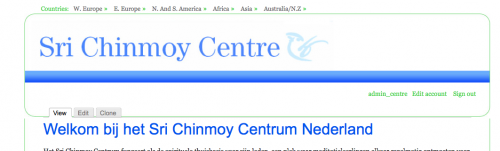
and the sidebar is located somewhere down the bottom
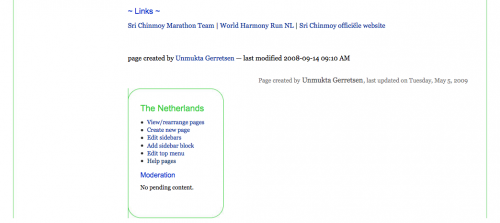
In this case - check the HTML of the page, using the 'Source' button in your text editor. The reason why this is happening is that <div> and <span> tags are not closing properly. For every <div> or <div class=" "> tag that exists in the code there should be a </div> tag to 'close' it, and the same for span tags.
Some pages (especially more complicated pages like front pages) got extra stuff imported with it, and that stuff had a lot of div tags, increasing the likelihood of this happening. See below:
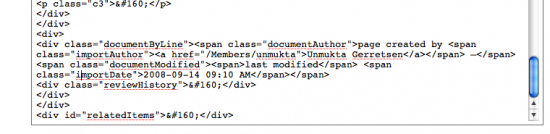
Once this is cleaned up, then the page is back to normal :)
Missing images
Often the image is still there on the filesystem, but the link to it is somehow broken, so you need to search around in your country filesystem for it and relink it.
One common reason - the structure of the site has been changed from subfolder (e.g. srichinmoycentre.org/jp) to subdomain (e.g jp.srichinmoycentre.org)
Most links in the site were changed to reflect this new structure, but a few still have the old structure:
http://www.srichinmoycentre.org/jp/sri_chinmoy/art
They can be changed to http://jp.srichinmoycentre.org/sri_chinmoy/art
Other causes
If that doesn't sort it out, there is probably some additional custom styling or CSS on your pages that was not brought into the new site, and you will need to contact us to work something out.
Sidebars and Sidebar Blocks
Aim:
To add a block in the sidebar for a certain section of the site e.g. NZ /meditation pages.
A 'block' is simply a piece of content that goes into the sidebar.
Method:
- Login, do to your country site and click on 'add sidebar block' in admin section.
- Give a block description e.g. 'meditation-nz'. Title is optional: if you don't add one, it won't show.
- Then in the Block Body section, add text, images and links like a normal page
- To list the sidebar on all pages of the site, just ignore the Show Block on specific pages section. It doesn't matter which one of the options you click.
Showing Sidebar in 'Meditation Section' /meditation
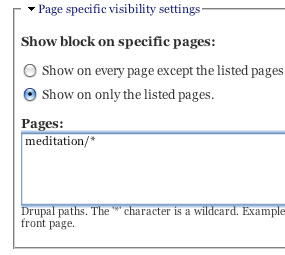
As you can see, you can show the block everywhere except specified pages, or on only those pages.
The Pages box is where you specify what pages to include or exclude. For each page we want to include/exclude, we enter its path into this box, one path per line.
The path of a page is its URL, minus the site address and preceding slash. For example if the page we want to include is http://nz.srichinmoycentre.org/meditation, then we put meditation as the path.
By using the * character we can include or exclude the block from many pages:
- meditation - includes/excludes the block on the meditation page only
- meditation* - includes/excludes the block on every page whose path begins with meditation, eg meditation/meditation-auckland
- meditation/* - includes/excludes the block on every page whose path begins with meditation/ (note that this does not include the meditation path itself)
- *meditation - includes/excludes the block on every page whose path ends with meditation
- meditation/*/learn-to-meditate - includes/excludes the block on pages such as meditation/auckland/learn-to-meditate and meditation/christchurch/learn-to-meditate
Changing Position of Block
When we save the block we are taken to the configuration page for all our blocks. We see that the block we created is currently disabled.
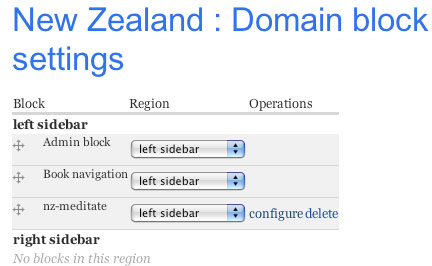
To enable our block, we can on region and change it left sidebar to right sidebar, then press save. You can also use the 'drag and drop' icon to move the block from one region to another.
To place the change the order of blocks in a region use the drag and drop cursor to drag the block up or down. Remember to save your changes afterwards.
Notes:
You will notice that you cannot configure the 'Admin Block' or 'Book Navigation' block in the same way that you can configure a block you created yourself. This is something we hope to improve upon in the coming weeks and months.
ps If you disable the Admin block, you will not be able to edit your site, so please be careful :) If you want it 'out of the way' you can always place it in the 'content bottom' region.
Adding / Editing Images
There are a few sections to this page:
- Adding images to your site
- Keeping images organised
- Resizing and cropping images
- Adding image captions
- Choosing images from other sections of the site
- Advanced notes
- Copyright
Adding images to your page.
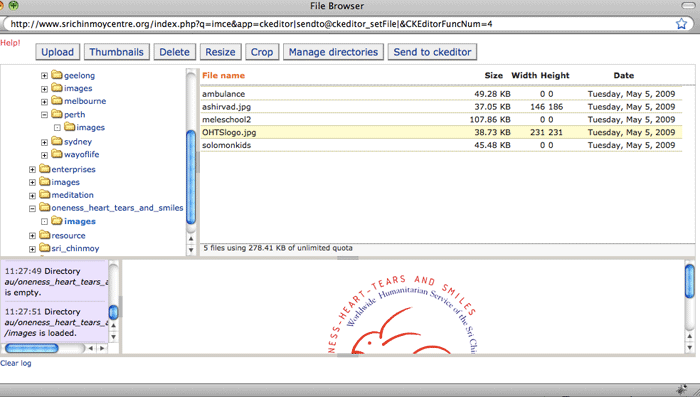
- Click on the image button (the picture frame). This will display your image filesystem.
- On the left choose the correct folder to add an image. There is a folder for each subdomain site (eg /ca for Canada). Inside this folder ,you can upload and delete images. You can browse images in other subdomain folders to add them to your page, but you can't add them there.
-
To upload an image, use the Upload button and select the image from your desktop.
- To add to an image to your page (either a freshly uploaded image or one that existed already), select that image and press the 'Add to ckeditor' button.
Keeping Images Organised.
We have kept the existing Plone structure of images, so you will find images already existing in subfolders. However, you may want to create more subdirectories to organize your images, e.g
- ca/images/meditation
- ca/images/people
- ca/images/size-250
To do this, navigate to the subdirectory /ca/images. Then click on the 'Manage directories' button, and type in a name (e.g. 'small') then click Add. You can now add images into this subdirectory /ca/images/small.
You can also use the 'Manage directories' button to remove directories
Resizing and Cropping Images
- You will achieve better results if you resize and crop images using Photoshop or Picasa before you add them to the site. However, there is basic functionality for cropping and resizing inside the file manager.
- To resize images, select the image, press the 'Resize' button and select the width and height. If you wish to change the width and keep the proportions, just change the width and then click in the height box - the new height will automatically be calculated.
-
To crop images - select an image and press the 'Crop' button. In the bottom window, you will see the image inside a green square, and a tiny pink window. Hover around on the small pink window, and hold and drag. (Holding and dragging when there is a hand cursor will move the square, when there is a crosshair will change the square size)

Note: to change the size of the cropping window, don’t try to change the size of the pink square (it wont work). Instead, click and drag to create a new pink cropping window. When you are happy, press ‘crop’. You can choose to crop the existing image or create a new, duplicate image.

Adding image captions
After you have added the image, press 'Source' and find the HTML for the image - we need to add a title attribute.
Changing it is relatively straightforward. The basic code for the image will look something like
<img src="/files/members/asprihanal.png" alt="" />
We change this by adding a title attribute:
<img src="/files/members/asprihanal.png" alt="" title="Asprihanal"/>
Once this is done, then click Source again, then click on the ‘Styles’ dropdown and add one of the 3 styles there (‘Align image to left, Align image to right, Unaligned image with caption’). You won’t see the caption immediately, but you will see it once you’ve finished editing and pressed ‘Save’.

Choosing Images from Other Sections of the Site.
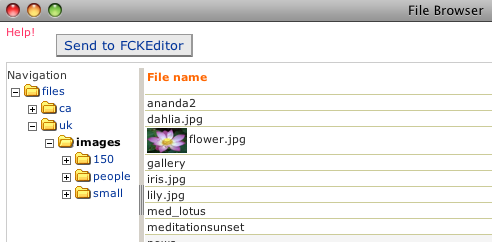
- Suppose you like images in the UK section. You can browse in the left to files/uk/images. You can then select the image you want, press Send to CKEditor, and use it in your page.
- Example: If you liked the lotus image on https://uk.srichinmoycentre.org/meditation. To see where the image is located: right-click on the image and then select 'view image'. This shows the image is at: http://uk.srichinmoycentre.org/files/uk/images/flower.jpg. Then, when you are editing your page, you can go into the filesystem, navigate to /uk/images and send this image to your page.
Browsing Other Sections to Find Images
Advanced Notes for Images
- To increase the speed of page load, it is important to keep the size of images low. When adding new images the size should be less than 100k.
- If an image greater than 900 by 600 pixels is added, it will automatically be resized.
- Some images in Plone were added without the .jpg suffix at the end. This means the text editor can't calulate their size and will add them as a link instead of an image.
- Linking Images. You can make a link into an image. Just click on an image and then select the link button. For example, the above image links to the main help page. Visitors often expect images to be links.
Copyright
- Please make sure you are not breaking copyright law before uploading images from google image search. We have thousands of beautiful images available on the Sri Chinmoy Centre Gallery to use, if possible try to use these instead of from some external site.
Adding items to the menu bar
The menu bar is the blue (centre site)/green (races site) bar over the main content.
This describes how to add/change the links which appear on the menu bar. This is the main navigation for your country site, and usually the most important pages are put here (eg Home, Meditation, Sri Chinmoy etc)
- Login, and go to your home country (e.g. https://au.srichinmoycentre.org/)
- On left sidebar click Edit main menu. The current menu items are displayed in rows.
- To add a menu item, click on 'add item'
Screenshot of Menu Item
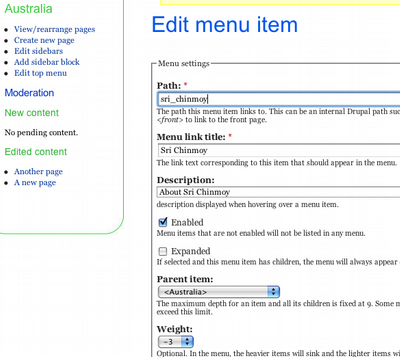
- The path is the URL of the page, for example, sri_chinmoy or about. To add a menu item for the front page, just enter <front> into this field.
- You can ignore the Parent item and Weight fields. Press 'save' to add the menu icon.
- To change the order of links, you can use the 'drag and drop' icons. Remember to save your changes
We don't recommend more than 5 or 6 choices - any more confuses the visitor and leads to a less effective menu.
Adding/Editing pages in the new site
This page is in 2 sections
- The text editor
- Page options - dealing with the light blue tabs below the
The text editor
For text editing, we are using a program called FCKEditor, which we have been using for almost a year now on other sites and are very happy with. Most of the buttons/features should be self-explanatory (if you hold the cursor over them you can see their description), but we'll talk about a few of the less obvious ones here.
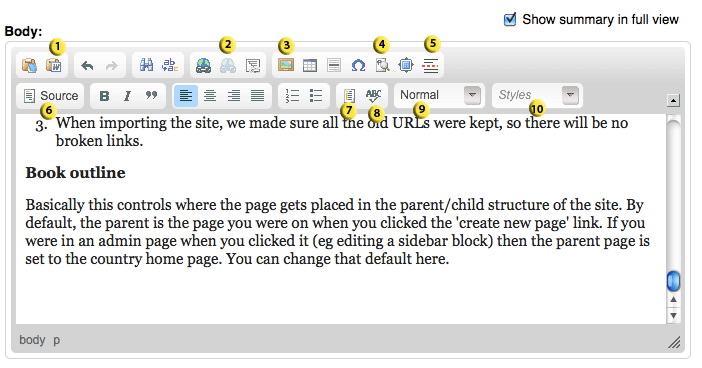
1. Paste from Word.
Besides the content, a Microsoft Word document contains a lot of unnecessary extra code and formatting wich can ruin the look of a page - use the Paste as Word button in the text editor to remove the junk but still keep the basic formatting. If you want to remove all formatting completely, you can use the Paste as Text button.
2. Links
When you press the link button (the globe and chain) you can add a link by pasting in the URL of the page. We often find it handy to thave the page you are linking to open on a seperate tab, so you can easily copy and paste the URL. You can also press 'Browse server' to link to files or images, more on that here...
The 'link to menu' button will search for pages in your country site to link to (to save you pasting in the URL) but it isnt fully functional yet.
3. Images
We have a whole page on adding and editing images here....
4. Show Blocks
This is not a button you'll be using often - basically if you're trying to put a complicated layout on your page and it is not working out the way you expected, this button will show the different 'blocks' on your site (eg paragraphs, tables, div classes) so you can see if any of them are accidentally bumping against each other.
5. Teaser button
A teaser is basically like the 'Description' field in Plone.
- On the Centre site, it is the text that appears on the 'Latest News' page/sidebar block for your country site.
- On the Races site, it appears in News and Events sidebar blocks as well as different 'views' that can automatically display laterst news and results.
When you want to set a teaser, you click the cursor on where you think the break should take place between the teaser and the main content, and then press the 'teaser' button. A red line will appear separating the teaser from the rest of the content.
If you unclick the 'Show summary in full view' checkbox, then the teaser you have set will not appear in the main page at all, so you can keep your teaser and main content completely seperate.
6. Source
This is basically the HTML code of the page. Bear in mind that settings such as the colour and size of text and headings is set globally using a time-honoured method known as CSS, so tyring to change them may not bring about the results you expected. A website looks more professional if it has a consistent look.
7. Templates
We have included some templates to help speed up the process of creating web pages:
- Centre site: We have many countries making a country site for the first time. To help speed up the process, we have included a few page templates that can be added and then changed/translated.
- Races site - we have included quite a few 'view' templates that will automaticaly display events/ results happening in your country
8. Spellcheck
The spellchecker uses a remote service to spellcheck, and you can select quite a few languages. Its a little annoying the way it keeps holding up 'Chinmoy' as a spelling error, but we're not sure what we can do about that.
9. Format
If you want some text as a heading, you select it here
10. Style
This is only really important for images (so far) - for more on this see the page on adding and editing images....
- To align images left or right, click on the image and then select the appropriate option from the 'style' list.
-
If you want to add an image caption but still have the image unaligned, then select 'unaligned image with caption'
Page Options
Submit page for moderation
Country editors will see a 'Submit page for moderation' checkbox, when they are ready to send their changes to the country manager to be moderated. Country managers will not see this, as their content is published by default.
Mark as news/event item
This is handled differently in the Centre and Races sites, see the below links:
Navigation controls
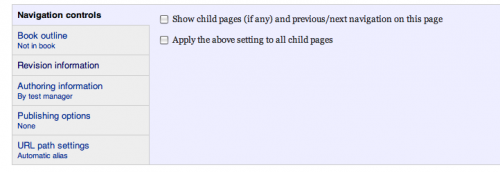
When the 'Show child pages...' option is ticked here, some nice navigation options show up at the bottom of the page. If the page has child pages, they will show up in a 'table of contents'-like listing. Below that, a previous/next navigation shows up. This can be a very nice alternative to the navigation menu.
If you don't want to go through every page enabling/disabling this setting, you can save work by checking the 'Apply the above setting...' box.
Revision information
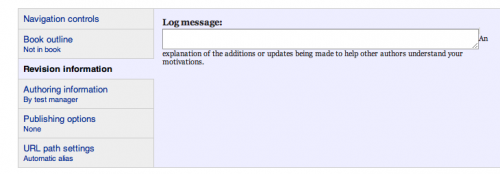
Drupal creates new revisions every time you edit a page. If you are unhappy with how the page looks once you save it, you can 'revert' to the previous revision in the edit tab.
In the 'Revision information' section you can organise your revisions by explaining the current changes in the Log Message box. Note that revisions older than a few weeks will be automatically deleted.
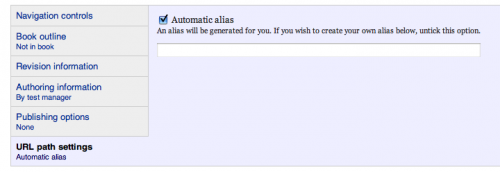
URL path settings (i.e the short name)
-
The URL path is basically what we used to call the 'short name' in Plone. When saving, all the URL paths will automatically be named after the title of the page, not including the folder structure. In Plone they were named after the folder structure. If you want to rename your page something different than the title, just uncheck the Automatic alias checkbox in the URL settings and enter your title. Read more on setting URL...
-
It is best to have the URL's all in Roman alphabet characters. If your country language uses additional accents on letters, or is entirely non-Roman (eg Cyrillic or Japanese), Drupal will do its best to 'transcribe' the non-Roman bits of the URL into phonetic Roman letters. We think the attempt at transcribing will cover all scripts used on the site, including all Cyrillic scripts, Georgian and Japanese katakana. If there is a character not covered, please let us know.
However, you may feel that the results are not good enough and that it's best to enter an alias yourself. Note that if the Save button is pressed with a non Roman alias and the transcribing fails, any non-Roman symbols will simply be stripped from the path. - When importing the site, we made sure all the old URLs were kept, so there will be no broken links.

Book outline
Basically this controls where the page gets placed in the parent/child structure of the site. By default, the parent is the page you were on when you clicked the 'create new page' link. If you were in an admin page when you clicked it (eg editing a sidebar block) then the parent page is set to the country home page. You can change that default here.
Sri Chinmoy Centre Links - Part 2
Links to enterprises inspired by Sri Chinmoy's teachings and personal example of a self-giving attitude in all aspects of life - including business.
Often in the realm of the food and catering industry, these enterprises are run by Sri Chinmoy's students from all over the world. Their aim: to provide diners with great service and wholesome food in a spiritual environment. We also offer links to a selection of non-food enterprises and personal websites.
Food and Catering Enterprises around the world
America:
- Annam Brahma - a vegetarian restaurant in Jamaica, New York.
- Ananda Fuara - a vegetarian restaurant in San Francisco, California.
- Consciousness-Blossoms - a vegetarian restaurant in Palm Harbor, Florida.
- Jyoti-Bihanga - a vegetarian restaurant in San Diego, California.
- Silence-Heart-Nest - a vegetarian restaurant in Seattle, Washington.
- The Oneness-Fountain-Heart - a vegetarian restaurant in Flushing, New York.
- The Panorama of My Silence-Heart - a vegetarian café in Jamaica, New York.
- Victorys Banner - a vegetarian restaurant in Chicago, Illinois.
Australia:
- My Rainbow-Dreams - a vegetarian café, gelateria and juice bar in Canberra.
Austria:
- The Heart of Joy - a vegetarian café in Salzburg.
Canada:
- Annapurna - a vegetarian restaurant in Toronto, Ontario.
- Peace-Garden - a vegetarian café in Ottawa, Ontario.
- Perfection-Satisfaction-Promise - a vegetarian restaurant in Ottawa, Ontario.
- Satisfaction Feast - a vegetarian restaurant in Halifax, Nova Scotia.
France:
- Tripti Kulai - a vegetarian restaurant in Montpellier.
Germany:
- The Cosmos Heart - vegetarian café in Augsburg.
New Zealand:
- The Blue Bird - vegetarian café in Auckland.
- The Lotus-Heart - vegetarian restaurant, café and gift shop in Christchurch.
Norway:
- The Fragrance Of The Heart - a vegetarian café in Oslo.
Switzerland:
- Hier und Jetzt Café - a vegetarian café in Bern.
Other Enterprises
Global:
- Gandhava Loka - world music instrument stores in Europe and New Zealand.
- Gandhava Loka - world music instruments in Christchurch, New Zealand.
- Lotus Yoga - yoga studio in the heart of Dublin, Ireland.
- Madal Bal - tool wholesale export and import in Budapest, Hungary.
- Madal Bal - health foods in Den Haag, Netherlands.
- Offset Druckerei Pohland - fine printing press in Augsburg, Germany.
- Rainbow Heart-Sky - florist, gallery and gift shop in Hahndorf, South Australia.
- Run and Become - running shoes and apparel in Great Britian.
- The Garden of Light - inspirational books, music and gifts in Ottawa, Canada.
- The Manifestation-Glow - printing press located in Flushing, New York.
- Transcendence-Perfection-Bliss of the Beyond - gift boutique in Washington DC.
- Transformation-Surprise Laundromat - Seattle, WA, USA.
- Tonland Goloka - produces and distributes the music of Sri Chinmoy from Germany.
Personal Sites
Global:
- Abichal.com - themes and expanding images of the meaning of life.
- Ashrita Furman - dubbed 'Mr. Versatility' by the Guinness Book of World Records.
- Gandharva - the music, musicians, and instruments of the Austrian music group, Gandharva.
- Golden Grove School - a Montessori school in Auckland, New Zealand.
- Light and Liberty - Reflections on the Pursuit of Happiness - the words of Thomas Jefferson compiled and edited by Eric Peterson.
- Meditation Workshop - Learning Meditation.
- MultiDays.com - the complete resource for the multiday runner.
- Oneness-Family School - The International Peace Academy.
- Perfection Journey - Utpal Marshall's blog.
- Premik Russell Tubbs - flutist, saxophonist, composer, arranger and producer.
- Pure Web Designs - offering a personal service in tailor-made web design and development.
- Sacred Steps - a site maintained by Roger Chamberlain of the UK.
- Sharani's Blog
- Stutisheel - Russian ultra-distance runner and student of Sri Chinmoy.
- Sumangali.org - in the spirit of serendipity.
- Tejvan's site
- Temple-Song-Hearts - an all female vocal and instrumental ensemble devoted exclusively to performing the music of Sri Chinmoy.
More Links
- Please feel welcome to visit Sri Chinmoy Centre Links - Part 1 - more links to websites dealing with all aspects of Sri Chinmoy's life, activities and teachings.
To the Sri Chinmoy Centre Homepage
Sri Chinmoy Centre Links Page
Welcome to our links page – a directory of links to various aspects of Sri Chinmoy's inspirational life and activities; to vegetarian cafes, restaurants and other enterprises run by members of the Sri Chinmoy Centre around the world – and to various personal websites maintained by Sri Chinmoy's students. We hope you find these links helpful and inspiring.
Sri Chinmoy Links
 Links to websites dealing with all aspects of Sri Chinmoy's life, activities and teachings.
- Sri Chinmoy: the official complete source. Sri Chinmoy is a spiritual teacher who has tirelessly dedicated his life to the fulfilment of the unlimited potential of the human spirit and to the pursuit of global harmony. This uplifting site shares information about Sri Chinmoy’s life and teachings; as well as his writings, music and artistic creations.
- Life of Sri Chinmoy – a web site dedicated to the remarkable life of spiritual teacher Sri Chinmoy. Life of Sri Chinmoy currently presents extracts from Sri Chinmoy's own writings in chronological order, drawing from the large but as yet unconsolidated volume of autobiographical material that he has published.
- Sri Chinmoy Library – through his many books of talks, questions and answers, poetry, essays, plays and short stories, Sri Chinmoy has conveyed the richness and diversity of the quest for inner harmony and self-understanding. Here is a wonderful online source for more than a thousand of Sri Chinmoy's books.
- Sri Chinmoy Poetry – a website offering a selection of poetry from Sri Chinmoy's prolific output which spans many decades and poetic modes. A 'must visit' for lovers of illumining poetry. As a professor of language studies at a prominent US university once stated, "Sri Chinmoy's poems are beautiful in their simplicity and profound in their significance."
- Sri Chinmoy Books – a website dedicated to the distribution of Sri Chinmoy's literature and music.
- Radio Sri Chinmoy – listen to spiritual music online. Experience the meditative and soul-stirring music of Maestro Sri Chinmoy. Select from Sri Chinmoy’s uplifting flute performances, soulful singing, resonant stringed instruments, magical keyboard, power-filled pipe organ and charming extemporaneous compositions. This site also offers poetry being read by Sri Chinmoy, performances of Sri Chinmoy's music by his students, news, interviews, plays, stories and more.
- Sri Chinmoy Songs – an online library that offers a vast collection of Sri Chinmoy's songs in both his native Bengali and English. These songs are devotional in nature and are based on Sri Chinmoy's direct experiences of God and the spiritual life. Sri Chinmoy Songs has a search facility, offers printable musical scores and recordings.
- Sri Chinmoy Concerts - since 1984, Sri Chinmoy performed his meditative music free of charge at 777 concerts worldwide. During these concerts, Sri Chinmoy played his own compositions and improvised on a variety of Eastern and Western instruments. He usually performed on a dozen different instruments and, on occasion, had played up to 150 instruments in a single concert.
- Sri Chinmoy Music – in Sri Chinmoy's words, "God is the Supreme Musician." This site celebrates music as a secret signature of the Divine; a sacred bridge between Heaven and earth and a choice manifestation of God.
- Sri Chinmoy TV – view video clips of Sri Chinmoy performing music, singing, reading poetry, lifting weights, painting and more. Sri Chinmoy TV also features Inspiration News, short films, plays and interviews.
- Inspiration-Lifts – the weightlifting feats of Sri Chinmoy.
- Sri Chinmoy Art – Sri Chinmoy once stated, "Both art and spirituality have a goal, and that goal is supreme joy, supreme delight." Sri Chinmoy Art takes you to the beautiful world of Sri Chinmoy’s vast meditative art works. View a selection of his Jharna Kala (Bengali for Fountain-Art), paintings of brilliant colours and harmonising designs. Soon to come are selections from Sri Chinmoy's extensive collection of soul-birds drawings.
- The Yoga of Sri Chinmoy – presenting Sri Chinmoy's teachings and philosophy.
Sri Chinmoy Biographical Books
- Madal The Child and A Shakpura Village Boy - biographical writings about Sri Chinmoy by Vidagdha Bennett.
Projects inspired by Sri Chinmoy
- Sri Chinmoy Centre – a website maintained by Sri Chinmoy's students from around the world with detailed information about free meditation workshops in many countries, inspirational editorial articles and Members Homepages, an extensive Photo Gallery, news, views and much more.
- Sri Chinmoy Marathon Team – an organisation created to offer the global running community a variety of running events from 2 mile fun runs through to the marathon and triathlons, and longer multi-day events such as the 1,300 mile race. Many members of the Sri Chinmoy Marathon Team are involved in channel swimming, mountaineering, competitive cycling, track and field and a host of recreational sports activities.
- 3100 Mile Race – a website for the Sri Chinmoy Marathon Team's 3100 Mile Race.
- The World Harmony Run – an annual global torch relay seeking to strengthen international friendship and harmony.
- The Oneness-Heart-Tears and Smiles Worldwide Humanitarian Service – a global project inspired by Sri Chinmoy in 1990 to be of service during the time of terrible food shortages in Russia. Since 2000, The Oneness-Heart-Tears and Smiles has developed a global network and have active centres in over 40 countries.
Related Inspirational Sites
- Sri Chinmoy Inspiration Group – sharing news, inspiration and encouragement.
- Sri Chinmoy Reflections – articles about the life of Sri Chinmoy.
- Sri Chinmoy Bio
- The Eternal Peace Flame - Oslo, Norway.
- Poetseers – the poetry of yogis, Avatars, saints, sages and transcendent poets.
- World Festival of the Heart - Meeting place of spirituality, science and the arts.
- Meditation Workshop – an introduction to meditation and spirituality.
- WriteSpirit – a collection of writings about great spiritual personalities.
German language web sites
- Links – Sri Chinmoy Centre, Germany.
More Links
- Please feel welcome to visit Sri Chinmoy Centre Links – Part 2 – more links to a selection of enterprises and personal websites offered by Sri Chinmoy's students from around the world.
Return to the Sri Chinmoy Centre homepage
- ‹ previous
- 167 of 337
- next ›

Except where explicitly stated otherwise, the contents of this site are licensed under a Creative Commons Attribution-NonCommercial-NoDerivs 3.0 Unported License. read more »
SriChinmoyCentre.org is a Vasudeva Server project.